The word “encrypted” in the cloud is reassuring. However, in most cases, your documents remain technically readable by the hosting provider.
When you store your files on Google Drive or a similar service, the decryption key is generally not in your hands, but rather in the hands of the provider storing your data.
As a result, if this service needs to analyze or access your files as part of its operation, internal processes, or terms of service, it has the technical capability to do so. And in the event of unauthorized access to your account, an attacker can also directly access all of your documents.
From there, several solutions exist:
- Accept this way of working and trust the service used.
- Choose a specialized cloud solution, often paid, such as Proton (https://proton.me/).
- Risk maintaining your own local or home-based solution (which I considered).
- Or… combine the advantages of cloud storage with the security of local encryption.
It is precisely this fourth approach that I tested, following this logic:
[My Documents]

|
v
[Local Encryption]

before sending to the cloud
|
v
[Storage and Synchronization]
Google Drive / S3

|
v
[Multi-Device Access]
This is not a backup solution, but a storage and accessibility solution.
The Initial Need
Until now, I was using local VeraCrypt volumes to store my sensitive documents.
From a security/encryption standpoint, there were no complaints. However, in terms of usage and storage, the limitations were significant:
- the container quickly became large, making backups impractical and difficult to automate
- access was limited to machines with VeraCrypt installed
- accessing files from mobile devices was complicated, especially with multi-GB files to transfer.
Therefore, I was looking for an alternative that could maintain a good level of confidentiality without sacrificing the convenience of the cloud. And for me, the convenience of the cloud is primarily about accessibility.
I also wanted to avoid subscription-based or heavily SaaS-oriented solutions, like Proton (despite all its advantages), while still opting for a tool that was maintained, reliable, secure, and required minimal upkeep.
One of the problems I was trying to solve was therefore enabling cloud backup while still being able to access my data from my smartphone.
The Approach Chosen
The idea is simple: files are encrypted locally before being sent to the cloud. The cloud provider then no longer has access to the readable content of the files.
In my case, I chose the following setup:
Google Drive as remote cloud storage, since I was already using this environment (and still use it to sync my photos), even though this approach can work with other providers, including S3-compatible ones;
Cryptomator for client-side encryption, compatible with Windows, macOS, Linux, and mobile;
rclone for synchronization under Kubuntu; on Windows or macOS, the Google Drive application can be used more simply;
The Cryptomator mobile app for occasional access from a smartphone.
This model allows me to retain the advantages of the cloud: accessibility, flexibility, and multi-device support, while avoiding entrusting the readable content of documents to the hosting service.
Other solutions considered
Before arriving at this setup, I explored several avenues. Sticking with VeraCrypt was the most obvious option. The problem wasn’t the encryption itself, but the container format: practical for archiving or local storage, much less so for regular synchronization and mobile access.
I also looked at specialized solutions like Proton. They are interesting, but involve a subscription and a stronger dependence on a single service, which I wanted to avoid. The advantage of Cryptomator is that I can change the remote storage without constraints.
Self-hosting was also a possible option, such as setting up a home NAS with a security-by-design solution, but this requires a relatively significant initial investment as well as the setup time, which I didn’t have.
That’s why I opted for a middle ground: keeping the convenience of the cloud, but adding the client-side encryption layer myself.
Why Cryptomator?
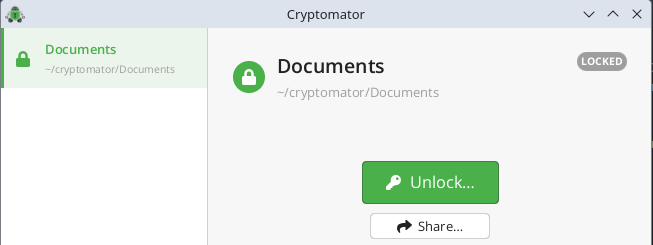
To begin with, Cryptomator is open source and offers a free desktop solution, without requiring a SaaS subscription. This was one of my requirements. This was one of my constraints when choosing the solution. The mobile app is a paid service, costing around €30, but it’s a one-time purchase, not a subscription.
It’s a significant improvement over the large encrypted container model in my use case. Instead of having a single large VeraCrypt file, you work with a file-by-file encrypted vault, which is much better suited for synchronization.
Cryptomator also has another important advantage: it’s available on Windows, macOS, Linux, Android, and iOS and is natively compatible with Google Drive on mobile (this doesn’t mean the experience is identical to the Google Drive app).
In practice, Cryptomator offers several advantages:
- Mobile access remains possible
- Remote storage only sees files that have already been encrypted
- Backup limitations associated with a single container are avoided
Their for individuals page clearly describes the solution’s main features: client-side encryption before sending, compatibility with existing cloud services, support for Windows / macOS / Linux / Android / iOS, ease of use, open source code, and encryption designed for everyday use without requiring specific technical knowledge. The FAQ also reminds users that files are individually encrypted, that filenames are protected, and that the tool is not limited to a single cloud provider.
Setup Description
On Linux
On Linux, and specifically on my Kubuntu system, there is, to my knowledge, no official Google Drive client equivalent to the one available on Windows or macOS. Therefore, an additional layer is required for synchronization.
I chose rclone because it’s a robust, flexible tool well-suited to a controlled synchronization approach.
The workflow is as follows:
- Work locally in the Cryptomator vault
- Synchronize the encrypted directory to Google Drive using
rclone - Then automate this synchronization with a
systemd --usertimer.
On Windows or macOS
On Windows or macOS, the approach can be a bit simpler.
It’s possible to use:
Cryptomator to manage the vault;
the official Google Drive application to synchronize the vault’s directory to the cloud.
The principle remains the same, however: the vault is encrypted before synchronization. Therefore, the cloud provider only receives files that are already encrypted.
On Mobile
This is an important point, because it was precisely one of VeraCrypt’s limitations in my case.
However, I saw the price of the mobile app (€29.99), and I was hesitant to make the purchase without being able to test the app. But the reviews were reassuring, and I had already confirmed its local functionality.
With Cryptomator, it’s possible to open the vault directly from the mobile app, which is connected to the cloud service. This allows for fairly simple access to your files from your phone.
On the other hand, you have to be careful with mobile write access. For occasional access, the model is very practical. For regularly modifying files from multiple devices, I think you need to proceed with caution.
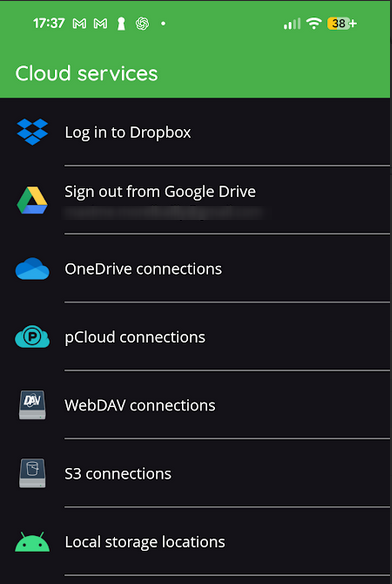
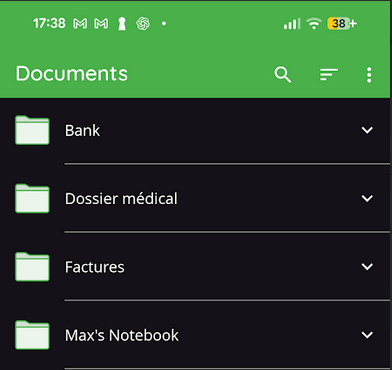
I find the mobile app quite simple and intuitive. I simply selected my Google Drive account (with the folder containing the Cryptomator key) and was then able to directly access my documents:
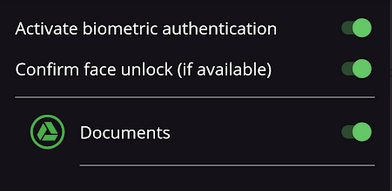
I was also worried about having to enter my password every time I opened the application, but the settings are comprehensive and they’ve integrated biometrics, which makes it much more convenient to use on a daily basis.
Why I prefer this model under Linux
On Linux, and especially under Kubuntu, I preferred to avoid a remote cloud installation as a working base. The chosen model seems more predictable to me:
- The encrypted vault remains on a real local file system
- The primary workspace remains local
- The cloud serves as synchronized storage
- The sync logic remains explicit and controlled
This approach is cleaner than a permanent remote mount, especially with a Cryptomator vault containing many small files. There’s also an important point: the source of truth remains local. The cloud is not my primary workspace.
Detailed Setup on Linux / Kubuntu
This section describes my current setup on Kubuntu / KDE Plasma with:
- a single Cryptomator vault
- remote storage Google Drive
rclone bisyncfor synchronization- orchestration using Bash scripts +
systemd --user
If you manage multiple vaults, you will need to duplicate or configure the scripts.
Kubuntu/Plasma Specifics
Here are the key points to note:
- The
systemd --userlogic works on many modern Linux distributions, not just Kubuntu. - The default mount path for the decrypted Cryptomator volume (
~/.local/share/Cryptomator/mnt/...) is standard Linux behavior for Cryptomator, not a Kubuntu peculiarity. - Activity detection via screen lock/unlock state relies on KDE/Plasma via D-Bus. This is the most desktop-specific point.
- Under GNOME or another environment, you will likely need to adapt the
get_lock_state()function or disable this trigger.
1. Prerequisites
Packages to Install
On Kubuntu, I installed the following tools:
sudo apt update
sudo apt install fuse3 inotify-tools
fuse3 is required for mounting Cryptomator’s FUSE under Linux. inotify-tools is used by the local watcher that detects changes in the encrypted vault.
Cryptomator
Install Cryptomator desktop as usual on your machine. The important thing here is not the installation method, but obtaining a functional and mountable local vault.
rclone
On my Kubuntu system, the apt package was too old for bisync use. Therefore, I installed a more recent version of rclone from the project’s official distribution. Check the version:
rclone version
For this setup, you should use at least a recent version of rclone with a stable bisync.
2. Create Google Drive access in rclone
Steps on the Google Cloud side
In general:
- Create or select a project in Google Cloud
- Enable the Google Drive API
- Configure the OAuth consent screen
- Create an OAuth Client ID of type Desktop app
- Retrieve the client ID and the client secret
- Then inject them into
rclone config(see below)
Basic configuration in rclone
Then run:
rclone config
Create a Google Drive remote, for example named gdrive, then:
Choose the
drivebackendEnter the
client_idandclient_secretChoose the scope that suits your needs
Allow access in the browser
Complete the configuration
In a simple case, We then obtain a remote like this:
gdrive:
The rclone configuration file is usually located here:
~/.config/rclone/rclone.conf
3. Create the local Cryptomator vault
Create the vault in a local directory, not directly in a cloud mount.
Example:
/home/<username>/cryptomator/Documents
After creation, we obtain an encrypted directory containing, among other things:
vault.cryptomatormasterkey.cryptomator- the
d/directory structure - sometimes
c/depending on internal control procedures.
The decrypted volume, once opened, is mounted on the Linux side by default under:
~/.local/share/Cryptomator/mnt/<VaultName>
In my case:
/home/max/.local/share/Cryptomator/mnt/Documents
4. First upload to Google Drive
Before switching to bisync, I performed a simple initial upload of the encrypted vault to Google Drive.
rclone sync /home/<username>/cryptomator/Documents gdrive:Cryptomator/Documents -P
Adapt this to:
/home/<username>/cryptomator/Documentsgdrive:Cryptomator/Documents
5. Initialize bisync
Once this first transfer is complete, I’ll use rclone bisync for the next steps.
First step: perform a dry-run.
rclone bisync /home/<username>/cryptomator/Documents gdrive:Cryptomator/Documents \
  --resync \
  --resync-mode path1 \
  --check-access \
  --check-filename vault.cryptomator \
  --compare size,modtime \
  --create-empty-src-dirs \
  --dry-run -vv
If the result is consistent, launch the actual initialization:
rclone bisync /home/<username>/cryptomator/Documents gdrive:Cryptomator/Documents \
  --resync \
  --resync-mode path1 \
  --check-access \
  --check-filename vault.cryptomator \
  --compare size,modtime \
  --create-empty-src-dirs -vv
Then, as a routine measure, no longer use --resync except in specific cases.
6. Local State Directory
Create the local directory structure used by the scripts:
mkdir -p ~/.local/bin
mkdir -p ~/.local/state/cryptomator-sync
mkdir -p ~/.config/systemd/user
7. Paths to Adapt
In the scripts below, adapt at least these variables:
LOCAL="/home/<username>/cryptomator/Documents"
REMOTE="gdrive:Cryptomator/Documents"
MOUNTPOINT_PATH="/home/<username>/.local/share/Cryptomator/mnt/Documents"
If you keep a different vault name, a different user, or a different remote, you must modify these three paths.
Scripts
Script 1: Actual Sync Execution
File:
~/.local/bin/cryptomator-bisync-run.sh
#!/usr/bin/env bash
set -Eeuo pipefail

# Adjust to your environment
LOCAL="/home/<username>/cryptomator/Documents"
REMOTE="gdrive:Cryptomator/Documents"

STATE_DIR="${XDG_STATE_HOME:-$HOME/.local/state}/cryptomator-sync"
LOG_FILE="$STATE_DIR/bisync.log"

RUN_LOCK="$STATE_DIR/run.lock"
PENDING_FILE="$STATE_DIR/pending"
LAST_SYNC_SUCCESS="$STATE_DIR/last_sync_success"
LAST_SYNC_ATTEMPT="$STATE_DIR/last_sync_attempt"
LAST_SYNC_REASON="$STATE_DIR/last_sync_reason"
LAST_RUN_EXIT="$STATE_DIR/last_run_exit"
CHANGE_DEBOUNCE_UNTIL="$STATE_DIR/change_debounce_until"
SYNC_RUNNING_FILE="$STATE_DIR/sync_running"
NEXT_SYNC_REASON="$STATE_DIR/next_sync_reason"

mkdir -p "$STATE_DIR"

exec 9>"$RUN_LOCK"
if ! flock -n 9; then
  exit 0
fi

HEARTBEAT_PID=""
PARENT_PID="${BASHPID:-$$}"

touch "$SYNC_RUNNING_FILE"
(
  while kill -0 "$PARENT_PID" 2>/dev/null; do
    touch "$SYNC_RUNNING_FILE" 2>/dev/null || true
    sleep 30
  done
) &
HEARTBEAT_PID="$!"

cleanup() {
  if [ -n "$HEARTBEAT_PID" ]; then
    kill "$HEARTBEAT_PID" 2>/dev/null || true
  fi
  rm -f "$SYNC_RUNNING_FILE"
}
trap cleanup EXIT INT TERM

# A sync is starting: previous debounce state is no longer relevant.
rm -f "$CHANGE_DEBOUNCE_UNTIL"

if [ -f "$NEXT_SYNC_REASON" ]; then
  reason="$(cat "$NEXT_SYNC_REASON")"
  rm -f "$NEXT_SYNC_REASON"
else
  reason="${1:-manual}"
fi

timestamp() {
  date +%s
}

log() {
  printf '[%s] %s\n' "$(date --iso-8601=seconds)" "$*" >> "$LOG_FILE"
}

notify() {
  command -v notify-send >/dev/null 2>&1 || return 0
  notify-send "$1" "$2"
}

rotate_log() {
  [ -f "$LOG_FILE" ] || return 0
  local max_size=$((10 * 1024 * 1024))
  local size
  size=$(stat -c%s "$LOG_FILE" 2>/dev/null || echo 0)
  if [ "$size" -ge "$max_size" ]; then
    mv -f "$LOG_FILE" "${LOG_FILE}.1"
  fi
}

rotate_log

echo "$(timestamp)" > "$LAST_SYNC_ATTEMPT"
echo "$reason" > "$LAST_SYNC_REASON"

log "START reason=$reason"

rc=0
if rclone bisync "$LOCAL" "$REMOTE" \
  --check-access \
  --check-filename vault.cryptomator \
  --compare size,modtime \
  --resilient \
  --recover \
  --max-lock 2m \
  --conflict-resolve newer \
  --create-empty-src-dirs \
  --log-level INFO \
  --stats 0 \
  >> "$LOG_FILE" 2>&1
then
  echo "$(timestamp)" > "$LAST_SYNC_SUCCESS"
  echo "0" > "$LAST_RUN_EXIT"
  log "OK reason=$reason"
else
  rc=$?
  echo "$rc" > "$LAST_RUN_EXIT"
  log "ERROR rc=$rc reason=$reason"
  notify "Cryptomator sync failed" "rclone bisync failed (rc=$rc). Check $LOG_FILE"
fi

if [ -f "$PENDING_FILE" ]; then
  log "PENDING detected after sync, keeping flag for agent"
fi

exit "$rc"
Make the script executable:
chmod +x ~/.local/bin/cryptomator-bisync-run.sh
Script 2: Decision Agent
File:
~/.local/bin/cryptomator-sync-agent.sh
#!/usr/bin/env bash
set -Eeuo pipefail

# Adjust to your environment
LOCAL="/home/<username>/cryptomator/Documents"
MOUNTPOINT_PATH="/home/<username>/.local/share/Cryptomator/mnt/Documents"

STATE_DIR="${XDG_STATE_HOME:-$HOME/.local/state}/cryptomator-sync"
LOG_FILE="$STATE_DIR/agent.log"

AGENT_LOCK="$STATE_DIR/agent.lock"
LAST_SYNC_SUCCESS="$STATE_DIR/last_sync_success"
LAST_LOCAL_CHANGE="$STATE_DIR/last_local_change"
LAST_VAULT_OPEN_STATE="$STATE_DIR/last_vault_open_state"
LAST_LOCK_STATE="$STATE_DIR/last_lock_state"
LAST_LOCK_SINCE="$STATE_DIR/last_lock_since"
CHANGE_DEBOUNCE_UNTIL="$STATE_DIR/change_debounce_until"
PENDING_FILE="$STATE_DIR/pending"
SYNC_RUNNING_FILE="$STATE_DIR/sync_running"
SYNC_STALE_MAX_SECONDS="${SYNC_STALE_MAX_SECONDS:-1800}"
NEXT_SYNC_REASON="$STATE_DIR/next_sync_reason"

mkdir -p "$STATE_DIR"

exec 8>"$AGENT_LOCK"
if ! flock -n 8; then
  exit 0
fi

timestamp() {
  date +%s
}

read_ts() {
  local file="$1"
  if [ -f "$file" ]; then
    cat "$file"
  else
    echo 0
  fi
}

write_ts() {
  local file="$1"
  local value="$2"
  echo "$value" > "$file"
}

log() {
  printf '[%s] %s\n' "$(date --iso-8601=seconds)" "$*" >> "$LOG_FILE"
}

rotate_log() {
  [ -f "$LOG_FILE" ] || return 0
  local max_size=$((5 * 1024 * 1024))
  local size
  size=$(stat -c%s "$LOG_FILE" 2>/dev/null || echo 0)
  if [ "$size" -ge "$max_size" ]; then
    mv -f "$LOG_FILE" "${LOG_FILE}.1"
  fi
}

rotate_log

now="$(timestamp)"
last_sync_success="$(read_ts "$LAST_SYNC_SUCCESS")"
last_local_change="$(read_ts "$LAST_LOCAL_CHANGE")"
debounce_until="$(read_ts "$CHANGE_DEBOUNCE_UNTIL")"
last_vault_open_state="$(read_ts "$LAST_VAULT_OPEN_STATE")"
last_lock_state="$(read_ts "$LAST_LOCK_STATE")"
last_lock_since="$(read_ts "$LAST_LOCK_SINCE")"

sync_running=0
if [ -f "$SYNC_RUNNING_FILE" ]; then
  sync_running=1
  sync_running_mtime=$(stat -c %Y "$SYNC_RUNNING_FILE" 2>/dev/null || echo 0)
  sync_running_age=$(( now - sync_running_mtime ))
  if [ "$sync_running_age" -gt "$SYNC_STALE_MAX_SECONDS" ]; then
    rm -f "$SYNC_RUNNING_FILE"
    sync_running=0
    log "stale sync_running removed: age=${sync_running_age}s (threshold=${SYNC_STALE_MAX_SECONDS}s)"
  fi
fi

run_sync() {
  local reason="$1"
  if [ "$sync_running" -eq 1 ]; then
    touch "$PENDING_FILE"
    log "sync already running -> mark pending, reason=$reason"
    exit 0
  fi
  log "launch sync, reason=$reason"
  echo "$reason" > "$NEXT_SYNC_REASON"
  systemctl --user start cryptomator-bisync.service --no-block
  exit 0
}

age_since_last_sync=$(( now - last_sync_success ))

# Return-from-inactivity detection: this uses Plasma lock/unlock state.
# If this does not work in your session, comment this block
# or adapt the get_lock_state() function.
get_lock_state() {
  if command -v qdbus >/dev/null 2>&1; then
    qdbus org.freedesktop.ScreenSaver /ScreenSaver org.freedesktop.ScreenSaver.GetActive 2>/dev/null && return 0
    qdbus org.kde.screensaver /ScreenSaver org.freedesktop.ScreenSaver.GetActive 2>/dev/null && return 0
  fi
  return 1
}

lock_state_raw=""
if lock_state_raw="$(get_lock_state)"; then
  :
else
  lock_state_raw=""
fi

is_locked=0
case "$lock_state_raw" in
  true|True|1) is_locked=1 ;;
  false|False|0) is_locked=0 ;;
  *) is_locked=0 ;;
esac

if [ "$is_locked" -eq 1 ]; then
  if [ "$last_lock_state" -ne 1 ]; then
    write_ts "$LAST_LOCK_STATE" 1
    write_ts "$LAST_LOCK_SINCE" "$now"
    log "state -> screen locked"
  fi
else
  if [ "$last_lock_state" -eq 1 ]; then
    write_ts "$LAST_LOCK_STATE" 0
    locked_duration=$(( now - last_lock_since ))
    log "state -> screen unlocked after ${locked_duration}s"

    if [ "$locked_duration" -ge 1800 ] && [ "$age_since_last_sync" -gt 600 ]; then
      run_sync "return-activity"
    fi
  else
    write_ts "$LAST_LOCK_STATE" 0
  fi
fi

# Detect opening of the decrypted vault.
vault_open=0
if mountpoint -q "$MOUNTPOINT_PATH" 2>/dev/null; then
  vault_open=1
fi

if [ "$vault_open" -eq 1 ] && [ "$last_vault_open_state" -ne 1 ]; then
  write_ts "$LAST_VAULT_OPEN_STATE" 1
  log "vault opened"
  if [ "$age_since_last_sync" -gt 300 ]; then
    run_sync "vault-open"
  fi
elif [ "$vault_open" -eq 0 ] && [ "$last_vault_open_state" -ne 0 ]; then
  write_ts "$LAST_VAULT_OPEN_STATE" 0
  log "vault closed"
fi

# Rerun after a change detected during the previous sync.
if [ -f "$PENDING_FILE" ] && [ "$sync_running" -eq 0 ]; then
  if [ "$age_since_last_sync" -gt 120 ]; then
    rm -f "$PENDING_FILE"
    rm -f "$LAST_LOCAL_CHANGE" "$CHANGE_DEBOUNCE_UNTIL"
    log "pending rerun requested after previous sync; clearing local-change debounce state"
    run_sync "pending-rerun"
  fi
fi

# Delayed sync after 5 minutes of quiet period.
if [ "$last_local_change" -gt 0 ] && [ "$debounce_until" -gt 0 ]; then
  if [ "$now" -ge "$debounce_until" ]; then
    if [ "$age_since_last_sync" -gt 300 ]; then
      rm -f "$CHANGE_DEBOUNCE_UNTIL" "$LAST_LOCAL_CHANGE"
      run_sync "local-change"
    fi
  fi
fi

# Periodic safety run.
if [ "$age_since_last_sync" -gt 7200 ]; then
  run_sync "periodic-2h"
fi

log "no action"
exit 0
Make the script executable:
chmod +x ~/.local/bin/cryptomator-sync-agent.sh
Script 3: Local watcher for the encrypted vault
File:
~/.local/bin/cryptomator-vault-watch.sh
#!/usr/bin/env bash
set -Eeuo pipefail

# Adjust to your environment
LOCAL="/home/<username>/cryptomator/Documents"

STATE_DIR="${XDG_STATE_HOME:-$HOME/.local/state}/cryptomator-sync"
LOG_FILE="$STATE_DIR/watch.log"

LAST_LOCAL_CHANGE="$STATE_DIR/last_local_change"
CHANGE_DEBOUNCE_UNTIL="$STATE_DIR/change_debounce_until"
PENDING_FILE="$STATE_DIR/pending"
WATCHER_PID_FILE="$STATE_DIR/watcher.pid"
SYNC_RUNNING_FILE="$STATE_DIR/sync_running"

mkdir -p "$STATE_DIR"
echo $$ > "$WATCHER_PID_FILE"

timestamp() {
  date +%s
}

log() {
  printf '[%s] %s\n' "$(date --iso-8601=seconds)" "$*" >> "$LOG_FILE"
}

if ! command -v inotifywait >/dev/null 2>&1; then
  log "ERROR inotifywait not found. Install inotify-tools."
  exit 1
fi

log "watcher started on $LOCAL"

inotifywait -m -r \
  -e close_write,create,delete,move \
  --format '%w%f %e' \
  "$LOCAL" | while read -r path evt; do

    base="$(basename "$path")"

    case "$base" in
      .DS_Store|Thumbs.db)
        continue
        ;;
    esac

    # Ignore technical Cryptomator noise when opening the vault.
    if [[ "$path" == "$LOCAL/c" ]] || [[ "$path" == "$LOCAL/c/write-access"* ]]; then
      log "ignored cryptomator access-check path=$path evt=$evt"
      continue
    fi

    # If a sync is already running, do not schedule a local-change run.
    # Just request a rerun at the end.
    if [ -f "$SYNC_RUNNING_FILE" ]; then
      touch "$PENDING_FILE"
      log "change during sync path=$path evt=$evt -> pending only"
      continue
    fi

    now="$(timestamp)"
    echo "$now" > "$LAST_LOCAL_CHANGE"
    echo $((now + 300)) > "$CHANGE_DEBOUNCE_UNTIL"

    log "change detected path=$path evt=$evt debounce_until=$((now + 300))"
  done
Make the script executable:
chmod +x ~/.local/bin/cryptomator-vault-watch.sh
User systemd units
Sync service
File:
~/.config/systemd/user/cryptomator-bisync.service
[Unit]
Description=Cryptomator bisync to Google Drive
After=network-online.target

[Service]
Type=oneshot
ExecStart=%h/.local/bin/cryptomator-bisync-run.sh
Decision-Making Agent Service
File:
~/.config/systemd/user/cryptomator-sync-agent.service
[Unit]
Description=Cryptomator sync decision agent

[Service]
Type=oneshot
ExecStart=%h/.local/bin/cryptomator-sync-agent.sh
Agent Timer
File:
~/.config/systemd/user/cryptomator-sync-agent.timer
[Unit]
Description=Run Cryptomator sync agent every minute

[Timer]
Unit=cryptomator-sync-agent.service
OnStartupSec=1min
OnUnitActiveSec=1min
AccuracySec=10s
Persistent=true

[Install]
WantedBy=timers.target
Watcher Service
File:
~/.config/systemd/user/cryptomator-vault-watch.service
[Unit]
Description=Watch Cryptomator vault for local changes

[Service]
Type=simple
ExecStart=%h/.local/bin/cryptomator-vault-watch.sh
Restart=always
RestartSec=5

[Install]
WantedBy=default.target
Activation
systemctl --user daemon-reload
systemctl --user enable --now cryptomator-vault-watch.service
systemctl --user enable --now cryptomator-sync-agent.timer
Enable user services at startup
Since this setup relies on systemd --user units, I had to enable the linger in my case so that the timers and user services could continue to function after a reboot, without strictly depending on the opening of the graphical session.
sudo loginctl enable-linger "$USER"
loginctl show-user "$USER" | grep Linger
# should display "yes"
This configuration is persistent.
Manual triggering
For example, add the following to ~/.bashrc:
alias sync-cryptomator='systemctl --user start cryptomator-bisync.service'
Reload your shell:
source ~/.bashrc
How it works in practice
The chosen behavior is intentionally tailored to my use case, with minimal changes expected on the mobile side and synchronization delays that seem reasonable:
- Periodic net sync every 2 hours
- Immediate sync when the vault is opened if the last sync was more than 5 minutes ago
- Immediate sync upon returning from inactivity if the screen has been locked for at least 30 minutes and the last sync was more than 10 minutes ago
- Delayed sync after 5 minutes of inactivity if a file in the encrypted vault changes
- Single rerun if a change occurs during an ongoing sync.
This isn’t real-time. It’s a compromise between readability, control, and API call cost.
Debug and logs
Application logs
The main logs are here:
~/.local/state/cryptomator-sync/bisync.log
~/.local/state/cryptomator-sync/agent.log
~/.local/state/cryptomator-sync/watch.log
Useful commands
tail -f ~/.local/state/cryptomator-sync/bisync.log
tail -f ~/.local/state/cryptomator-sync/agent.log
tail -f ~/.local/state/cryptomator-sync/watch.log
journalctl --user -u cryptomator-vault-watch.service -f
journalctl --user -u cryptomator-sync-agent.service -f
systemctl --user status cryptomator-vault-watch.service
systemctl --user status cryptomator-sync-agent.timer
systemctl --user list-timers
Limitations of this approach
This solution is interesting, but it’s not perfect.
1. It’s not native real-time synchronization under Linux
The behavior depends on how the workflow is built. Under Linux, with rclone, the logic is based on periodic or manual synchronization.
2. You must remain disciplined regarding simultaneous modifications
I haven’t thoroughly tested this point, but if a vault is modified in several places at the same time, for example on the main PC and on a mobile device, conflicts or unpredictable behavior can be introduced.
This isn’t necessarily a problem if mobile usage remains occasional, but it’s something to keep in mind.
3. Trust doesn’t disappear completely.
The cloud provider no longer sees the readable content of the files, but it still sees:
- that files exist
- their approximate size
- their modification frequency
- certain storage metadata
Content confidentiality is therefore greatly improved, but you don’t become invisible.
4. Backup remains a separate issue
Cloud synchronization is not a backup in the strict sense. If a file is deleted or corrupted locally, this error can also be replicated. Therefore, the system must be supplemented with a truly independent backup strategy. I haven’t yet seriously looked into this. For the moment, my old local VeraCrypt volume still serves as a supplementary backup.
5. Dependence on software updates
This approach remains dependent on the evolution of several tools: Cryptomator, rclone, the mobile application, as well as the cloud service used.
As always, this implies a certain level of technical dependence over time. However, I haven’t noticed any particular reliability issues at this stage. And the fact that the main components are open source partially reduces the risk: the operation is more transparent and the dependence on a single vendor is more limited.
6. This version manages a single vault
The scripts above assume there is only one Cryptomator encrypted volume. For multiple vaults, you will need to duplicate the scripts/services or configure them properly.
My opinion after testing
This setup isn’t magic, but I find it very coherent for achieving a good compromise around more secure cloud storage.
It allows you to:
- maintain the convenience of cloud storage
- have a true client-side encryption layer
- avoid the practical limitations of a large VeraCrypt volume
- remain with a relatively simple and inexpensive solution
- and regain reasonable mobile access to sensitive documents.
VeraCrypt remains excellent for archiving, static storage, or offline volumes. However, I hadn’t found a truly practical model with VeraCrypt to meet my cloud backup and mobile access needs.
Conclusion
If you currently store sensitive documents in a traditional cloud service, relying solely on the word “encrypted,” it’s probably worth taking a closer look at who actually holds the keys.
In my case, adding a client-side encryption layer allowed me to maintain the convenience of the cloud without relinquishing direct access to my file content.
It’s not a perfect solution. It requires a bit of method, a bit of discipline, and a solid understanding of what synchronization truly entails. But for my needs, it’s currently one of the best compromises between confidentiality, simplicity, and cost.
This feedback is based primarily on my specific requirements and within the limits of the research I’ve conducted so far.